Wednesday, May 13, 2026

Can I make a view in Dynamics CE filter for two fields are the same (or different)?

I have a client that has some user-created flows are populating two lookup fields. They want a view of all rows where the two lookup fields are the same, but you cannot compare two fields using advanced find. The solution is to create a new field in your table using a PowerFx formula. 

In this example, I created an 'Error condition' column on a custom table that compares the two contact lookups, and if they are the same, then this column will show Yes (true). 

In this variation, I use the IF() function to return a "Yes" string if the fields are the same. I would argue that this is more flexible than the above because I can update this in the future to return different strings for different error conditions. 


Now I can make a view that filters where those fields are the same value


Friday, April 24, 2026

How to use Option sets to simulate an outer join in PowerFx fields in Dataverse

I have a table that is optionally related to a parent Opportunity table, meaning that the lookup field is not always populated. The problem I was trying to solve was that I needed a view to show all rows where the Opportunity lookup is blank, or the Opportunity status was "Open". This would be easy with SQL using an outer join, but you cant do it directly in a model driven app with a view that users can maintain because the view filter for a related table only lets you join where the opportunity lookup is populated.

I came up with this solution, where I added a PowerFx expression field to the child table that contains this formula:

If('Opportunity'.Status= 'Status (Opportunities)'.Open
    ,"Open"
    ,If('Opportunity'.Status= 'Status (Opportunities)'.Won
        ,"Won"
        ,If('Opportunity'.Status= 'Status (Opportunities)'.Lost
            ,"Lost"
            ,If(IsBlank('Opportunity'),"No Opp","")
        )
    )
)

 Now I can make a view that filters on any row where the field says "No Opp" or "Open" and no need for a join to the Opportunity table. 

Friday, February 27, 2026

Can I get a view to show a column from a parent table?

How many times have you been creating a view, and found that a column you need is on a related table two or three relations "up" the parent relationship chain? Now you can get those column into your view easily using a PowerFx formula. For example, lets say you are designing a view of opportunities, and you want to see the territory name of the manager of the sales person that owns an opportunity. You have these tables:


Start by creating a column in a table and selecting a "Formula" data type. After the "Formula" field  appears, type the name of a lookup column from your current table, and it will prompt you with the column names from that related table. Put a period at the end of the column and it will prompt you with all the columns (and other parental lookups) from that table. You can continue using the 'dot' notation to link up multiple levels in the relationships as necessary to get the column you want. Here is how my example looks when adding a field to the opportunity table:


The data type and format depend on the data type of the field you select. 

There are some limitations, such as with currency. For those cases, you need to use the Value() function to change the field into a Decimal data type before you can use it. At that point, you can choose  formatting under the Advanced Options:


I now prefer to use the PowerFx over the classic calculated field. I have found that when I promote a solution as managed, then the classic calculated field's "edit" icon is inactive and will not let me see the underlying formula. 

I have learned through experimentation that the PowerFx formulas don't do a good job with date/time fields when used on email templates; no matter what type of date/time formatting I have tried, it will always show the time. If you find a way to make PowerFx work on templates, I would like to hear back!

You can read more about these formulas in the MS documentation: Work with Dataverse formula columns - Power Apps | Microsoft Learn


Saturday, February 7, 2026

Which cloud flow (or workflow) updated a record in your audit history: "Fingerprints"

Have you ever tried to figure out which cloud flow or workflow updated a record, but the Modified By field just says a user name (or service account)?

The problem with any automation that updates Dataverse is that the automation runs under the context of a user. In my applications, I will regularly have over a hundred flows, business rules, integrations, canvas pages, and plugins that update records in Dataverse. Up until a few years ago, it was frustrating when a client would call because some odd behavior was occurring and they could not find the source. Sometimes you could go to make.powerapps.com and open the default solution to see if the field in the table had a dependency, but that is...not dependable. 

My solution is a "Fingerprint" (single line of text) field in every table, and when any automation  or integration creates or updates a record, it also populates the Fingerprint field with its name. Now I can look at the Audit History of any record and see what process is making updates. If you have a better option, please share it!


Powercat Creator Kit "DetailsList" lessons learned

I have been learning how to build Power Platform Canvas apps and have some things I would like to share. 

I have a client that has a need for a model-driven-like view inside a canvas page. After poking around, I found the Powercat Creator Kit contains a "DetailsList" control which is about as close to the user experience of a view (sort/filter/drill down) in model driven app as I have found to date. Releases · microsoft/powercat-creator-kit

First, thanks to Scott Durow (https://www.youtube.com/scottdurow) for making some nice videos on the topic - highly recommend. 

My use-case is a bit complex, but here is my cut-down version: I have several tables in Dataverse that I needed to do some fancy join logic to get the right values, so I decided to use Power Automate and custom FetchXML on Dataverse to get my data into a collection in my Canvas Page (story for another day). I need to present the user with the data as a view and let them click on selected cells to pass to another process. The DetailsList has the ability to format selected columns as "links" where I can customize the behavior when a user clicks on it. 

My collection has text and many columns of numbers that range from 0-15 with up to 3 decimal places. The client wants to see the numbers with all 3 decimal places and right justified. The only way to do that (that I have found so far) is to convert the displayed data using the Right("_" & Text(,"#0.000"),6) function, however, that breaks the OOTB column sorting feature in DetailsList, because it sees the column values as text, so numeric values appear to sort lexicographically (e.g., “1”, “10”, “2”, “20”) rather than numerically (and still left justified because the string appears trimmed).

My workaround is to add a 'formatted' column (using the above expression) for each numeric column. For example, if I have a numeric column name of "ecc_25", then I will do this:

AddColumns( collection, ecc_25_formatted, Right("_" & Text(ecc_25,"#0.000"),6)) 

So now there is one numeric column in the collection that can be sorted correctly, and a formatted version that I added to the fields of the DetailsList control. In my case, all my values are a links, so they appear to be underlined when rendered, and my "_" prefix is not obvious to the user.

Then in the DetailsList OnChange event I have this:

If(
    Self.EventName = "Sort",
    UpdateContext(
        {
            ctxSortCol: If(("formatted" in Self.SortEventColumn), Left(Self.SortEventColumn,6), Self.SortEventColumn),
            ctxSortAsc: If(
                Self.SortEventDirection = 'PowerCAT.FluentDetailsList.SortEventDirection'.Ascending,
                false
                ,true
            )
        }
    )
);

Note the ctxSortCol is expecting the name of the sorting column as a string, so I trim off the "_formatted" part of the column name and the DetailsList will take care of the sorting correctly.

I posted a feature request in Github for them to add a Text format property added to each column (defined in columns_Items) and a Justification property (left/right/center). If you like this idea, please add your comments DetailsList column sorts formatted numeric values lexicographically: workaround + feature request · Issue #389 · microsoft/powercat-code-components

Monday, September 16, 2024

Power Platform (MS CRM/CE) Business Rule Best Practices

Here are my top things I would do when creating a business rule:
  1. Set the Scope to a specific form (unless there is a really good reason to make it Entity scope)
  2. Make it affect only one field on a specific form
  3. Give it a name using the one form / field it is tied to
  4. Give it a description that explains WHY it is necessary, not a description of what it does
  5. Include the inverse action (ex: lock AND unlock) after the condition
I recommend using a scope that is specific to a form, because it is common to have multiple forms, and if you set the scope to All Forms or Entity, then you run the risk of having the logic have unexpected results. 

The reason to make it affect only one field is that it is very common for someone to remove a field from a form without realizing that the field is part of a business rule, and it causes the entire business rule to stop running. If you have a complex business rule that updates multiple fields, then you run the risk that future form maintenance will break the rule. By making a separate business rule for each field is that you can very clearly "declare" that one fields behavior separate from every other field on the form, thus removing a field from a form will not break all the other logic on the form. This is the same way that Canvas apps operate, using declarative approach, instead of procedural. 

Naming the business rule something like "Main Form Account Sync locked" is more meaningful than trying to invent a name that describes the logic that affects 10 fields. 

A description should inform the person that is maintaining the code "why" you have the business rule, for example "After the account is synchronized, this field is read-only so that users don't try to change it back to No". Imagine trying to write a useful description for multiple fields. 

The reason to have both branches of the condition covered is that (in most cases) a user is likely to start to enter a value in a field which triggers the business rule, then they change their mind and want to choose a different option, but if there is no alternate action to 'undo' what was set in the Yes condition, then the user is stuck. 

Wednesday, August 21, 2024

PowerAutomate Flows Trigger Multiple Times - a proposed workaround


Revised 2/7/26

Every now and then, I get a Power Automate Flow that seems to trigger more than once, and most of the time it is not a problem, but sometimes they are running in parallel and end up creating duplicate records which is undesirable. It happens most often when a Dataverse trigger Change Type is "Added or Modified". I suspect that something in the API is updating the record right after creating it. I have tried using Delay actions, however, when I have a large number of flows running, there is a possibility that the delay will not be long enough, or it just lets the duplicate flows run together at a later time. 

There is a "Concurrency Control" feature under the trigger action settings. If you turn this on, you cannot turn it off (not even by deleting the trigger action), so make a backup first and consider your options. What this feature can do is make your flows run one after the other, rather than at the same time (in parallel). By turning setting the trigger's concurrency control to 1, and revise the flow to run a query first (LIST action) to see if any other flow finished the work already.

While it can solve this problem with flows running in parallel, I believe it will be a performance bottleneck; I would appreciate if someone could confirm this. Further, I don't want to do this to very many flows, and I cannot always tell when it will be a problem. Should I just settle for possible bottlenecks and make all of them single threading? Nah, I like getting the max performance possible.

A better solution:
I created an "Event Control" table with an alternate key on the Name field. If more than one flow tries to add more than one row to that table with the same alternate key value, then it will fail.

The new strategy is this: Using the ID of the triggering record and a the flow name as a 'key value', insert it into the Event Control table. If it succeeds, continue, else terminate. At the end of the flow, delete the record that was created. You could also potentially use the Event Control table to surface an admin dashboard to monitor the health of your system and present error messages, or highlight long running processes. Here is a simple example:

If the "Add event control" action fails, then another flow is already running and the Scope will exit to the Terminate action below. If it succeeds, then it will "perform some work" and delete the event control. Note that we want the delete action to run if something fails while performing the work. 

In some cases, I may have several different flows that need to run from the same triggering event. In this case, I will augment the 'Name' with both the record GUID and the name of the flow so that Flow "A" and "B" can both run when started from the same triggering event. 

I have noticed that the OOTB Power Automation / Automation Center will show errors for actions that fail, even if the action is followed by "Run After" to catch the failed action, so for that reason, using this strategy could look like more failures are happening, but if you create your own dashboard, you can get better information. I use Run After all over my flows (because I am used to using Try/Catch in other programming languages) and the Automation Center is not helpful for me. I would like to hear your thoughts on the subject.


Sunday, April 7, 2019

Making PowerBI Easier

I recently learned about a cool tool in XRMToolbox called Power Query M Builder (PQMB) by Mohamamed Rasheed (ITLec) and Ulrick “CRM Chart Guy” Carlsson (eLogic LLC) and I love the tool. It lets you generate Power Query code using Dynamics 365 views as your starting point, then you can tweek them using FetchXML Builder to get more complex queries, and then  generate a full query that produces the field names using the labels from your CRM metadata. This process is much faster than starting from scratch using the Power Query tool to build up a query to find the right data, plus, it has the added advantage that you can easily change the connection URL for all the queries from a single place, which is really helpful if you have a solution you move from dev to production.

I left a mesage on Ulrick’s blog that there is one improvement I would like to see.  I would like to have the ability to save/recover views more easily. For example, I have a report that I know needs several different CRM views or custom FetchXML queries. After I have created all the queries in Power Query and then start to relate them together in PBI, then I find that I am missing some columns, so I need to start from scratch on one or more of my views in PQMB.

To save some time, I started saving all my FetchXML queries embedded in comments at the end of the Power Query Advanced Editor. Here is what I do:

While in PQMB, I can open the FetchXML builder to modify a query

then copy it to the clipboard and paste it into the end of the Power Query using /* comment */  .

Now if I had to revise my query at a later date, then I can quickly get back to what I had without having to recreate a complex query from scratch.

Saturday, April 6, 2019

How to I hide App navigation in Dynamics 365 CE?

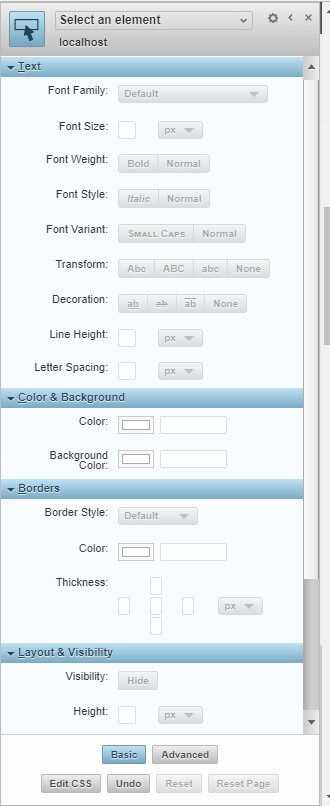
My favorite secret weapon is a Chrome extension called Stylebot. I can change navigation, colors, and even compress whitespace!

After you install it, refresh your screen and open it using the CSS icon in Chrome. You can click on the element you want to change (or hide), and it has friendly buttons to make quick changes. It will save the style changes using the URL of the site. You can export and import the style mods and share them with other users.

Wednesday, February 27, 2019

What is the solution version number used for?

A recent thread of discussion on the CRMUG forums about this topic got me thinking – here is my take on the subject.

For the smaller clients with no integration, I think there is value in using the current date in the solution version number so when you export it so that you can easily keep track of which file in your downloads folder is the right one. A quick acknowledgement to @Gus Gonzalez's for making that suggestion. End users can easily comprehend it and it adds value to them. A solution file can have literally anything in it and the (typical) version number does nothing to help you with figuring out what is major/minor/patch or resolving dependencies. By using Gus's technique, the date of the solution is built into the exported file name. By using Gus's technique, you avoid having multiple copies of a file called "SolutionName_1_0_0_0.zip" and trying to figure out which one is relevant. I would argue that for the people creating solutions for small(er) organizations, it is not easy to make the distinction of major vs minor. Can anyone here define how many fields on a form must move before you cross the threshold from a patch to a minor release, or how many business rules must be changed before it becomes a major release?


But for a company that has a staff of developers that depend on integration with other systems and have governance policies, we should consider the benefits to the version number with a traditional approach. For many of my past projects, I have clearly agreed with @Ben Bartle's position because I come at this as a developer. The reason has to do with traditional software development practices: When writing applications that have dependencies on a multitude of libraries (.DLL's), then keeping track of the version number helps you identify whether an update to a library will significantly impact your application. With a DLL it is easy to define what is major, minor or a patch based on best practices.

For a consultant that is configuring systems for many clients, I would recommend that you have the name of the client for the solution name, and put the D365 version in the first two decimal positions of the version number, and date in YYMM.DD format in the last two positions. This makes it easy to tell which version of D365 you exported the solution from (which could be significant if the development area is not in sync with staging and production) and the date it was exported.

To bring this point back into context of this discussion, when you modify a D365 solution and then promote it to production, you are actually updating the API endpoints. Consider what happens when you alter the behavior of workflows, deprecate entities/fields, or make the field length shorter. When you promote that solution into production, you run the risk that integration code will break.

Personally, I have been putting the date in the solution's Information/Description field.  While this is not as pretty as using the version number as a proxy for a date, it serves it purpose because you can see the solution description gets updated in the production system. The only downside with that approach is that you have to either import the solution file to see the description containing the date, or rip apart the zipped solution file and read the XML files.

With respect to keeping track of whether the solution file contains a major/minor/patch to a system, that is something everyone should be documenting anyway regardless of whether you go with Gus or Ben's recommendation. By keeping a log of changes and/or implementing a full version control system between development/staging/production, you must be communicating your changes to your testing staff or your end users, no matter how small the change is. If users detect a change that you were not in control of, they might think the system is unstable, and they will lose confidence in your system.

Friday, February 22, 2019

Dashboard Options in Customer Engagement

    The Dashboard could take many forms. I have seen some very creative ideas using roll-up calculations in Goals to generate the data, and then use a View+chart to display your results. SSRS is another possibility, but it suffers the same problem that Goals have in that it has limitations on the number of records it can work with.

There is a free add-on to Excel called Power Query which you might find useful because it lets Excel query data from Customer Engagement (CE), and then your dashboard is a tab that represents the data with charts or tables. My favorite dashboard tool these days is Power BI because it lets user interact with the data, as a developer you have more control over the results, and fewer restrictions on the number of records you can work with. It also allows you to embed Power BI into a CE dashboard so it appears that you never leave CE.

If you want to do forecasting, the Probability field on the Opportunity is used as a multiplier against the Estimated Revenue, and when used in the aggregate, is called the Expected Value. It commonly used to forecast revenue for a sales pipeline report.

If you are a fan of predictive models, you could use the current years sales, adjustments for seasonality, and current growth curve to predict future sales. I just finished taking a masters class on this subject and would be interested in helping you out.

Sunday, February 10, 2019

Why is D365 running so slow?

I hate to say it, but your system performance depends on many things. Here is my check list of possible issues, ranked from most to least likely (in my humble opinion):
  • Synchronous workflows and plugins - You could test this (in a sandbox) by deactivating them and see if there is a difference in performance.
  • Check your Settings/System Jobs to see if you have a lot of activity in there (especially failures). If you have years worth of system job data, I highly recommend you set up scheduled Bulk Record Deletion jobs.
  • Data duplication rules – how many published rules do you have? Turn them off and see if there is a difference.
  • Browser plugins (including antivirus)
  • Browser cache – depends on the browser, but highly recommend clearing your cache daily because MS is updating the form rendering engine all the time.
  • Is Auditing turned on?  It could play a small part in your overall performance.
  • External apps, such as PowerApps, Flows, ClickDimensions that might add load to your database. If you set up an Azure application in a different region from your CRM instance, this could impact system performance (and unnecessary cost).
  • Network throughput (Bandwidth) In a recent Gartner survey, 22% of IT leaders identified networking problems as the root cause for performance issues with Office 365. I have customers that have researched their connection speed between different MS data centers and have had unexpected results. Just because you are close to the data center does not mean it will be faster.
  • Time of day – Sometimes I can see a difference in performance depending on the time of day, which is likely to be related to my upstream network throughput or the data center where my D365 instance is located. The only way I could test this would be to create a dedicated data circuit between my office and my data center.
  • JavaScript embedded in your form that make a lot of API calls. Use the browsers built-in performance tool to see what is happening.
  • Asynchronous workflows running will add workload to your database. For example, If you have imported 100k records which might kick off 200k async workflows, then users might expect to see slow performance while the workflows are hitting your system.
  • Relevance Search and Text Analytics – crawls your site to index your data. This is adding load to your system.
  • Legacy form rendering – you could try to experiment with this System Setting, but be warned – MS says that legacy form rendering will be turned off.
  • Server Side Sync – do you have a lot of email coming in? Are new contacts created?
  • Number of rollup queries – you would see how much activity is going on in the System Jobs Log (mentioned above). This would also include things like Goals.
  • Cascading relationships – Look at each 1:N relationship and see what the “down-stream” effect is of your updates.

Sunday, January 20, 2019

Create a link to a new UI form

I was reading recently in a D365 CE discussion thread that someone wanted to create an email using a workflow, and the email needed to have a link to an Account form in the new UI.

This is possible if you know how to make URL parameters appear the way you want in a workflow email. Consider this: if you try to create a link in the email using the editor, and you click on the Link icon, then you do not have any options to add a reference to a record’s Global Unique ID (GUID) in the URL:


Our goal is to make a URL that contains the parameters needed to trick CE into showing the new UI form when the user clicks the link to access the account.

The URL we are trying to create takes this form:

…//xxxx.crm.dynamics.com/main.aspx?appid=&pagetype=entityrecord&etn=account&id=

Where:

    “xxxx.crm.dynamics.com/main.aspx?” is your base URL
    “appid=” is the parameter that navigates the user to the new UI
    “pagetype=entityrecord&etn=account&id=” will open the desired account record

The base URL seems easy. However, if you are following best practices, then you know it is not a good idea to hard code the base URL into your workflows. The reason is because most people have a 3 phase process to Develop a solution, test it in a Staging environment, and then deploy it into Production. Each one of those environments has its own URL. I solved that problem by creating a workflow Action in all 3 environments that holds the base URL. More on this later.

To get the App ID, open your app designer and get the GUID of the app. It follows the “/” and ends at the “#”


Now I am ready to create an Action to assemble the URL we want. I put an “aaaaa_ ” in the front of the name to make it appear at the top of the list just as an illustration for this article. 
 In that Action, I created a couple arguments for input and output. The first one is an input parameter with the Account GUID (we will get to how we get the GUID in a minute). The second argument will hold the return value.

Next, add a step to assign the return value with the base URL from above.


The second step in the action appends the necessary account parameters to the previous step. This will give us a complete URL when it is called. I could have done this all in one URL, but in best practice, I would have made the system URL a separate Action that is not promoted with my development solution and lives only in my Development, Staging and Production system so that I do not have any hard coded URLs in my workflows.


 Now when we call that Action, we need to pass in the Account GUID as a string. The solution I found was to use a free solution called Workflow Elements by Aiden Kaskela. This solution has the ability to reveal Metadata about the workflow as string values. After you download and import the solution to your system, you get some new options when you add steps to your workflows. The one we are interested in is the “Workflow – Get Metadata” which will provide the GUID of the record that triggered the workflow to start.


Next I created a workflow to create my email. The first step is set to run the Get Metadata feature provided by Workflow Elements. It does not take any parameters to configure. In subsequent steps in the workflow, it provides the Record ID of the account record that triggered the workflow to start.  


The second step in the workflow is to call my “aaaaa_create url to hub” action where I pass with the Account GUID as the input parameter.

The final step is to create the email that uses the EntityURL created by the previous step in the workflow and it provides just the Output parameter from the action, which contains the full URL we need.


When you run the workflow, it will now generate a full URL link to the related account for the new UI.
 

Leave me a note below if you found this useful.